BIOS Date and Time Explained: What It Controls
Learn where BIOS or UEFI date and time come from, why they reset, and how firmware time relates to the operating system clock.
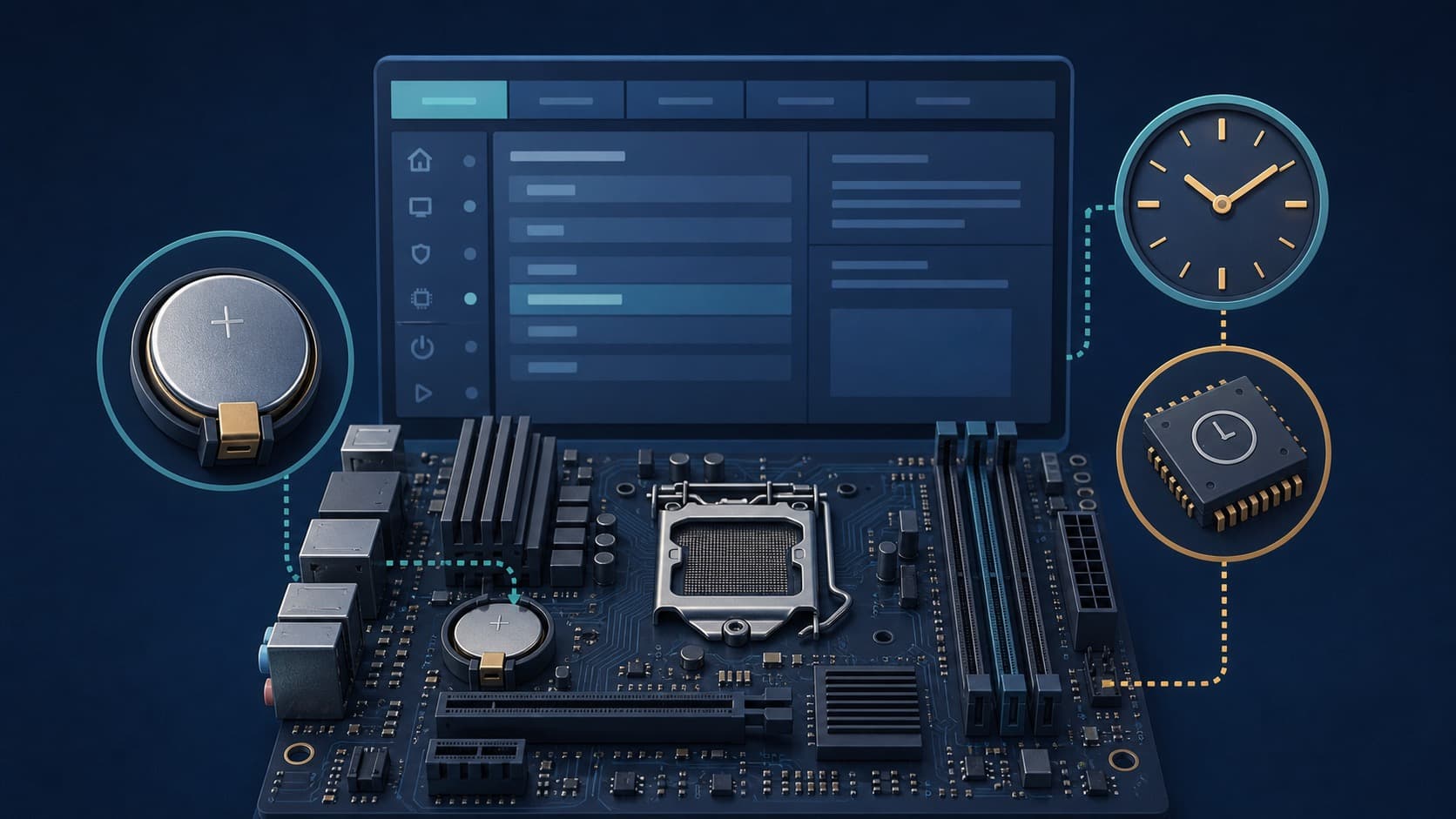
The BIOS or UEFI date and time is the firmware's view of the computer's hardware clock. It exists before the operating system starts, which is why a setup screen can show a date even when no drive is installed and no network is available.
BIOS, UEFI, CMOS, and RTC
These terms are often mixed together:
- BIOS is the older firmware interface used to initialize a PC
- UEFI is its modern replacement on most current systems
- RTC is the real-time clock circuit that counts date and time
- CMOS historically referred to low-power memory that stored firmware settings
- CMOS battery is the common name for the coin cell that powers the RTC and preserves settings
Modern hardware may implement the details differently, but the familiar names remain in repair guides and firmware menus.
What the Firmware Clock Controls
At startup, firmware reads the RTC and passes an initial time to the operating system. The OS then runs its own system clock and may synchronize it over the network. The firmware date can also affect hardware event logs, wake schedules, and the apparent order of boot records.
The firmware clock does not control your time zone. It usually stores plain clock fields without a full geographic zone rule. The operating system decides how to interpret those fields.
Local Time Versus UTC in the RTC
Many Windows installations historically expect the hardware clock to contain local time. Linux and other Unix-like systems commonly prefer UTC. A dual-boot computer can appear several hours wrong if one OS treats the same RTC value as local time and the other treats it as UTC.
The clean fix is to configure both systems to use the same convention. Repeatedly changing the firmware clock hides the disagreement for one system and recreates it for the other.
Why the Date Resets
A classic symptom of a depleted RTC battery is a date that returns to a manufacturer default or an old year whenever the machine is unplugged. Firmware settings may also be forgotten. While the computer remains connected to power, the problem may disappear.
Not every reset is a battery failure. Firmware updates, a motherboard fault, a reset jumper, or intentional settings recovery can also clear stored values. Observe whether other settings are lost before replacing parts.
When to Edit BIOS Time
Edit it when the initial date is wrong and the operating system cannot correct it, when testing an offline machine, or when resolving a dual-boot configuration. Record the original values first. Choose the intended UTC or local-time convention and then let the operating system synchronize normally.
Avoid experimenting with unrelated firmware settings. Storage mode, secure boot, voltage, and boot keys can affect whether the computer starts. A date repair does not require changing them.
A Diagnostic Sequence
If the menu-bar clock is wrong, check the operating system's zone and sync status. If firmware itself is wrong immediately after power loss, check the RTC battery and firmware settings. If two operating systems disagree by a whole-hour offset, check their RTC convention. Separating those layers turns "the BIOS clock is broken" into a testable problem.
Virtual Machines and Firmware Time
A virtual machine may receive its initial clock from the host rather than a physical coin-cell RTC. Guest tools can continue synchronizing it with the host while the guest operating system also runs NTP. Competing correction paths may create jumps or repeated adjustments.
Snapshots add another clue. Restoring a snapshot can restore software state from an earlier moment while the host clock remains current. A well-configured guest corrects itself after resume, but logs created during the transition can appear out of order.
After Replacing an RTC Battery
Replacing a desktop coin cell can clear firmware settings. Before service, record boot order, storage mode, and any custom security setting. After replacement, set the intended date convention, load only the settings the machine requires, boot the operating system, and verify network synchronization.
Laptop designs vary widely and some RTC power sources are not user-serviceable. Consult the manufacturer's service manual rather than assuming every device uses an accessible CR2032 cell.